![MGID_Logo_Help_Center_W_R_Swoosh.svg]](https://help.mgid.com/hubfs/MGID_Logo_Help_Center_W_R_Swoosh.svg)
MGID Settings
1. In the MGID dashboard, to begin the process of setting up campaign tracking, click Create and then Campaign.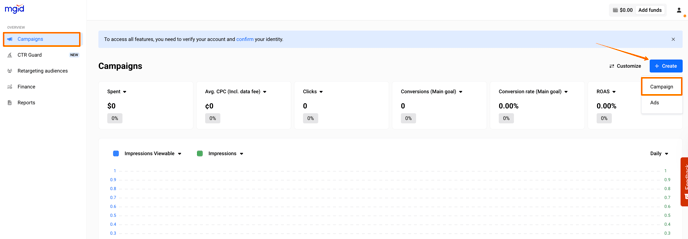
2. After filling out the Campaign setup and the Budget and limits sections, proceed to the Conversion tracking section. Then, click Webhook./Advertisers/1.%20English%20language%20articles/Webhooks%20updated/1.%20Webhook_new.png?width=688&height=363&name=1.%20Webhook_new.png)
3. Name your conversion goal (e.g., "order"). To track multiple goals, simply repeat this step for each new goal./Advertisers/1.%20English%20language%20articles/Webhooks%20updated/2.%20Webhook_new.png?width=688&height=332&name=2.%20Webhook_new.png)
4. From the dropdown list of third-party platforms (vendors), choose Braip./Advertisers/1.%20English%20language%20articles/Braip.com/Braip-webhook.png?width=688&height=363&name=Braip-webhook.png)
The click_id parameter is automatically included in the tracking tags, so no manual edits are required.
5. Click the Get webhook URL button to generate your unique webhook link. Copy the provided URL – this is the endpoint to be configured on the vendor’s side.
/Advertisers/1.%20English%20language%20articles/Webhooks%20updated/5.%20Webhook_new.png?width=688&height=350&name=5.%20Webhook_new.png)
/Advertisers/1.%20English%20language%20articles/Braip.com/Braip-webhook_1.png?width=688&height=355&name=Braip-webhook_1.png)
6. If you're editing an existing campaign, hit Save Changes. For new campaigns, select Publish to go live.
7. Complete the Integration on the vendor’s side. Use the generated webhook URL to configure tracking within the selected vendor's platform.
Braip Settings
1. In your Braip account, click Ferramentas (Tools). Next, click Postback.
/Advertisers/1.%20English%20language%20articles/Braip.com/NEW_braip1.png?width=688&height=297&name=NEW_braip1.png)
/Advertisers/1.%20English%20language%20articles/Braip.com/NEW_braip2.png?width=688&height=296&name=NEW_braip2.png)
2. Select Nova configuração (New Configuration) — this will open the postback configuration tab.
/Advertisers/1.%20English%20language%20articles/Braip.com/NEW_braip3.png?width=688&height=296&name=NEW_braip3.png)
- https://a.mgid.com/postback/webhook?e=webhook_main&vendor=braip
/Advertisers/1.%20English%20language%20articles/Braip.com/NEW_braip4.png?width=688&height=326&name=NEW_braip4.png)
/Advertisers/1.%20English%20language%20articles/Braip.com/NEW_braip5.png?width=688&height=323&name=NEW_braip5.png)
Then, press Salvar (Save).
You are able to track two more additional events, simply select Nova Configuração (New Configuration), repeat the previous steps and add the following URLs with the vendor name at the end of the URL.
- https://a.mgid.com/postback/webhook?e=webhook_additional1&vendor=braip
- https://a.mgid.com/postback/webhook?e=webhook_additional2&vendor=braip
Lastly, contact your manager to perform test conversions and confirm that the tracking setup was successful.