![MGID_Logo_Help_Center_W_R_Swoosh.svg]](https://help.mgid.com/hubfs/MGID_Logo_Help_Center_W_R_Swoosh.svg)
In this article:
How to Launch CTR Guard on Demand
CTR Guard is a performance-oriented feature in MGID Ads designed to help you consistently refresh campaign creatives with minimal effort. Instead of manually replacing underperforming creatives, CTR Guard automatically generates new ads based on real performance insights, which keeps your campaigns fresh and effective. It saves your time while boosting results.
How CTR Guard Works
CTR Guard uses AI-powered creative generation, which is triggered by campaign-level data signals. The system creates four new creatives automatically, once the campaign meets one of the following triggers:
Trigger 1: Ad Burnout
If a creative has been active for at least 10 days and its vCTR drops by 15%+ in the past 3 days, the system flags it as burned out. CTR Guard instantly creates new ad variations to replace it.
Trigger 2: Low Active Ad Volume
If your campaign is running with only 1–2 active ads, CTR Guard identifies it as underloaded. Based on your top-performing creative, it generates fresh ads to strengthen rotation.
Please note that CTR Guard is available only for product and search feed campaigns. Every auto-generated ad is reviewed and clearly labeled “CTR Guard” before appearing in your dashboard.
CTR Guard leverages data from the original (active) creative and generates:
- Titles & descriptions, which is an AI-powered text in your campaign’s language.
- Two image versions.
The first image version is a landing-page-based version. It uses content from the landing page or keywords for AFD feeds to generate a visually distinct, product-matching image. Often produces newer angles that can outperform the original image.
The second image version is an image-based version. It’s a fresher-looking creative that generated more visual similarity, but a new variation.
- Two types that mix AI and original media.
Hybrid 1: New AI image + original title;
Hybrid 2: Original image + new AI title and description.
Example:
/Advertisers/1.%20English%20language%20articles/CTR%20Guard/Example.png?width=688&height=390&name=Example.png)
CTR Guard Panel
From the CTR Guard panel, you and your account manager can:
- Browse creatives in gallery or table view.
- See trigger explanations (e.g., Ad Burnout, Low Volume).
- Filter by campaign & status.
- Jump directly to the original campaign via the direct link.
- Check the status and enable or disable creative generation at the account level.
/Advertisers/1.%20English%20language%20articles/CTR%20Guard/ctr_guard_v2_1.png?width=688&height=375&name=ctr_guard_v2_1.png)
- Track unseen creatives, highlighted with a blue dot and counter in the side menu tab.
/Advertisers/1.%20English%20language%20articles/CTR%20Guard/ctr_guard_v2_2.png?width=688&height=374&name=ctr_guard_v2_2.png)
- Launch creatives into rotation using the Manage Auto-Launch button.
/Advertisers/1.%20English%20language%20articles/CTR%20Guard/ctr_guard_v2_3.png?width=688&height=374&name=ctr_guard_v2_3.png)
/Advertisers/1.%20English%20language%20articles/CTR%20Guard/ctr_guard_v2_3.1.png?width=688&height=334&name=ctr_guard_v2_3.1.png)
Creative Status & Notifications
-
New creatives appear only after moderation.
-
Creatives generated automatically are clearly labeled with "CTR Guard" in your campaign list.
-
Ads are ready to launch immediately once visible in CTR Guard.
-
You receive an email when new creatives are available. The email is sent to the primary contact associated with the advertiser’s account.
/Advertisers/1.%20English%20language%20articles/CTR%20Guard/ctr_guard_v2_4.png?width=290&height=461&name=ctr_guard_v2_4.png)
Client Control
New creatives are blocked by default; you choose when to launch them. Ads inherit the campaign’s original CPC settings. You can:
- Manually launch creatives into rotation
- Edit and re-submit for moderation
- Copy ads across campaigns
CTR Guard ensures your campaign’s performance is high with fresh, AI-generated creatives while giving you full control over what goes live.
CTR Guard on Demand
CTR Guard on Demand lets you spin up AI-generated ad variations directly from the dashboard based on your landing page, your existing creative, or a smart blend of both. Access it from the creative actions menu (Generate ad).
/Advertisers/1.%20English%20language%20articles/CTR%20Guard/1.%20CTR_Guard_on_demand.png?width=688&height=267&name=1.%20CTR_Guard_on_demand.png)
The Generate ad action is only available for the following creatives:
- Creative types: Product and Search Feed
- Creative format: Static images only
- Creative status: Approved creatives only
How to Launch CTR Guard on Demand
- Click Generate ad on the chosen creative. A side panel opens where you can select the campaign and the generation strategy.
- Pick your target campaign (where the new creatives should be generated) from these options:
- Current campaign (selected by default);
- Another campaign from a dropdown list.
- Product creative shows only the product campaigns of that client;
- Search feed creative shows only search feed campaigns.
- All – Use all available strategies below (selected by default);
- Landing Page Based – Focuses on your landing page content to generate original ad concepts that match your product;
- Original Image Based – Generates new ads based on your original image, creating variations with different style, tone, or angles while keeping the main concept intact;
- New AI Image and Original Title – Replaces the image while keeping your original text;
- Original Image and New AI Title & Description – Keeps your image and updates the title and description.
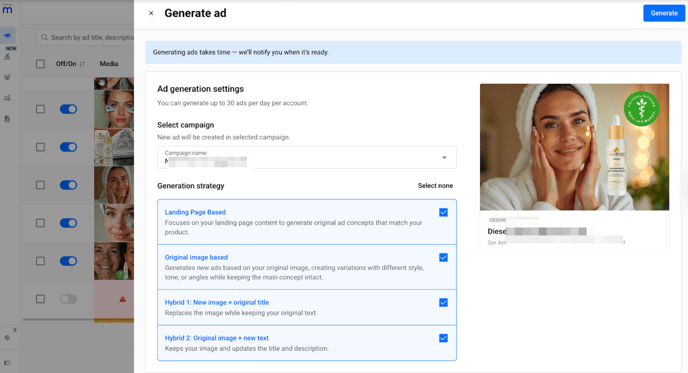
Find all manually generated creatives in the CTR Guard panel under the tab Manual generation.
/Advertisers/1.%20English%20language%20articles/CTR%20Guard/3.%20CTR_Guard_on_demand.png?width=688&height=341&name=3.%20CTR_Guard_on_demand.png)
Once generation starts, the original creative card shows a Generating ads indicator.
/Advertisers/1.%20English%20language%20articles/CTR%20Guard/4.%20CTR_Guard_on_demand.png?width=688&height=228&name=4.%20CTR_Guard_on_demand.png)
Motion Ad Generation
Turn your static creatives into captivating, high-quality motion ads instantly and effortlessly.
With just one click, Motion Ad generation transforms your existing visuals into dynamic, scroll-stopping videos designed to boost engagement.
To generate a motion ad, follow these simple steps:
- Go to the Ads section and click the three-dot menu next to the creative you want to animate.
- Select Generate Motion Ad.
/Advertisers/1.%20English%20language%20articles/CTR%20Guard/1.%20Motion_ads_generation.png?width=688&height=345&name=1.%20Motion_ads_generation.png)
3. Choose whether to generate the motion ad for your current campaign or a different one. That’s it, the system automatically produces a motion version of your creative.
/Advertisers/1.%20English%20language%20articles/CTR%20Guard/2.%20Motion_ads_generation.png?width=688&height=341&name=2.%20Motion_ads_generation.png)
There’s no need to redesign or reshoot anything; your original creative is simply reimagined as an animated video. It’s fully brand-safe and ready to grab attention in the feed.
Here’s how it works:
- Your first five motion ads are free.
- Additional generations unlock automatically based on your campaign’s total spend on motion creatives.
- You’ll see a progress message right on your dashboard showing how much more you need to spend to unlock the next batch of motion ads.
You can find all generated motion ads in your CTR Guard panel under the Motion Ads tab. Newly created motion ads are easy to spot; they’re marked with a blue dot.
/Advertisers/1.%20English%20language%20articles/CTR%20Guard/3.%20Motion_ads_generation.png?width=688&height=341&name=3.%20Motion_ads_generation.png)
Explore best practices for getting the most out of your motion ads.
Notification Center
After the creative generation completes (success or failure), you’ll get a Notification Center alert under the CTR Guard tab:
✅ Success: "New ad generation complete! Check out your new ad ID {12062535} for Campaign {name}. [link to ad]"
❌ Failure: " Couldn’t generate your ad. Ad in Campaign {name} wasn't generated due to [reason]."
Clicking the notification opens the newly generated creative in the CTR Guard panel.
Notifications are marked as "read" only after appearing within the visible screen area or after manually marking “Mark all as read.
/Advertisers/1.%20English%20language%20articles/CTR%20Guard/5.%20CTR_Guard_on_demand.png?width=302&height=369&name=5.%20CTR_Guard_on_demand.png)
Notifications for Motion Ads Generation
Once the generation of the motion ad is complete, you’ll receive a notification in your dashboard:
✅ Video generation complete – watch it now!
❌ Video generation failed – please try again later.
/Advertisers/1.%20English%20language%20articles/CTR%20Guard/4.%20Motion_ads_generation.png?width=261&height=367&name=4.%20Motion_ads_generation.png)
Generation Limits
The average time to generate new creatives is 10 minutes.
By default, the system allows 30 generations per day per client account. If the limit is reached, an error message appears:
"You've reached the daily limit for AI-generated creatives. To maintain system performance and moderation capacity, there's a cap on the number of creatives that can be generated per day. Please try again tomorrow or contact your account manager if you believe this limit should be increased."
Manual generation is always available (regardless of client status in the CTR Guard panel). New creatives may appear as (depending on review status):
- Approved
- On moderation
- Rejected