![MGID_Logo_Help_Center_W_R_Swoosh.svg]](https://help.mgid.com/hubfs/MGID_Logo_Help_Center_W_R_Swoosh.svg)
In this article:
CTR Guard Generation Limits and Strategies
How to Launch CTR Guard on Demand
CTR Guard on Demand Generation Limits
CTR Guard is an AI-powered creative generation system designed to automatically produce and test new creative variations for active campaigns. The system continuously monitors campaign performance and generates new creatives when specific optimization triggers are met.
The goal of CTR Guard is to help advertisers maintain creative freshness, combat creative fatigue, and improve campaign performance with minimal manual effort.
CTR Guard is available only for product and search feed campaigns.
How CTR Guard Works
CTR Guard only works with active campaigns. Paused, disabled, archived, or inactive campaigns are excluded from the generation process.
Generated creatives are built using AI-powered models that analyze proven high-performing creatives (“donors”) and generate new variations based on their successful elements.
Every auto-generated ad is reviewed and clearly labeled “CTR Guard” before appearing in your dashboard.
The system continuously analyzes active campaigns and generates new creatives automatically, once the campaign meets one of the following triggers:
Trigger 1: Ad Burnout
The burnout trigger identifies creatives that are losing effectiveness due to audience fatigue, when:
- Spend is greater than or equal to $2
- vCTR difference is 10% or greater
Trigger 2: Low Active Ad Volume
The low active ad volume trigger helps maintain a sufficient number of active creatives within a campaign, with only 1-2 active ads.
When the number of active creatives falls below the required threshold, CTR Guard generates additional creative variations based on the top-performing creative.
To avoid excessive duplication, a donor creative can be used as the basis for generating up to two new creative variations.
Client Statuses
CTR Guard supports two client statuses: Active and Disabled.
/Advertisers/1.%20English%20language%20articles/CTR%20Guard/1.%20new_CTRS_Guard.png?width=670&height=61&name=1.%20new_CTRS_Guard.png)
Active - Creative generation is enabled. CTR Guard continuously monitors eligible campaigns and automatically generates new creatives when predefined trigger conditions are met.
Disabled - Creative generation is turned off. No new creatives will be generated for the client's campaigns. When CTR Guard is disabled, a notification is displayed on the dashboard to inform the user that the feature has been turned off.
/Advertisers/1.%20English%20language%20articles/CTR%20Guard/2.%20new_CTRS_Guard.png?width=670&height=336&name=2.%20new_CTRS_Guard.png)
To prevent unnecessary generation for inactive accounts, CTR Guard may automatically switch a client from Active to Disabled when all of the following conditions are met:
- The client has automatically generated AI creatives.
- None of the approved AI-generated creatives are currently in Active status.
- None of the approved AI-generated creatives have received any spend during the last 30 days.
In this case, CTR Guard generation is automatically disabled until the client re-enables it.
CTR Guard Generation Limits and Strategies
Generation limits are applied at the campaign level. Each campaign can have a maximum of 10 AI-generated creatives.
This limit applies only to automatically generated creatives and does not include creatives generated manually through CTR Guard on Demand.
Once the limit is reached, no additional creatives will be generated for the campaign until existing AI creatives are deleted.
When a creative qualifies for a CTR Guard trigger, the system generates up to 2 new creative variations based on that donor creative. This approach focuses on producing fewer, higher-quality variations while reducing unnecessary creative volume.
Category-Based Generation Strategy
CTR Guard uses category-specific generation strategies. The generation approach may vary by ad (donor) category to ensure generated creatives align with category-specific requirements and performance patterns. Different categories may use different generation templates and prompts.
CTR Guard leverages data from the original (active) creative and generates the two best-performing strategies for the donor category.
Let’s review each strategy separately:
- Landing Page Based - Focuses on your landing page content to generate original ad concepts that match your product;
- Original Image Based - New ads based on original image, creating variations with different style, tone, or angles while keeping the main concept intact;
- New AI Image + Original Text - Replaces the image while keeping original text;
- Original Image + AI Text - Keeps the original image and updates the title and description.
/Advertisers/1.%20English%20language%20articles/CTR%20Guard/9.%20new_CTRS_Guard.png?width=670&height=379&name=9.%20new_CTRS_Guard.png)
CTR Guard Panel
From the CTR Guard panel, you and your account manager can:
- Browse creatives in gallery or table view.
- See trigger explanations (e.g., Ad Burnout, Low Volume).
- Filter by campaign and status.
- Jump directly to the original campaign via the direct link.
- Enable or disable CTR Guard generation for your account using the Enable/Disable toggle.
/Advertisers/1.%20English%20language%20articles/CTR%20Guard/3.%20new_CTRS_Guard.png?width=670&height=331&name=3.%20new_CTRS_Guard.png)
-
Track unseen creatives, highlighted with a blue dot and counter in the side menu tab.
/Advertisers/1.%20English%20language%20articles/CTR%20Guard/4.%20new_CTRS_Guard.png?width=670&height=334&name=4.%20new_CTRS_Guard.png)
-
Launch creatives into rotation using the Manage Auto-Launch button.
/Advertisers/1.%20English%20language%20articles/CTR%20Guard/5.%20new_CTRS_Guard.png?width=670&height=334&name=5.%20new_CTRS_Guard.png)
The Manage Auto-Launch setting does not control creative generation. It only controls whether approved AI-generated creatives are automatically activated after approval.
- When enabled: Approved AI-generated creatives are automatically launched into campaign rotation. New creatives can start receiving traffic without any manual action. Optional budget / clicks limits can be applied to control initial testing budgets.
- When disabled: Generated creatives remain paused after approval. You must manually review and activate each creative before it can start receiving traffic.
/Advertisers/1.%20English%20language%20articles/CTR%20Guard/6.%20new_CTRS_Guard.png?width=670&height=334&name=6.%20new_CTRS_Guard.png)
/Advertisers/1.%20English%20language%20articles/CTR%20Guard/7.%20new_CTRS_Guard.png?width=670&height=333&name=7.%20new_CTRS_Guard.png)
Creative Status & Notifications
- New creatives appear only after moderation.
- Creatives generated automatically are clearly labeled with "CTR Guard" in your campaign list.
- Ads are ready to launch immediately once visible in CTR Guard.
- Depending on your Auto-Launch settings, they are either activated automatically or await manual activation.
CTR Guard may display dashboard notifications for important status changes, including:
- CTR Guard disabled automatically due to inactivity.
- CTR Guard disabled manually by the user.
- Generation-related status updates.
/Advertisers/1.%20English%20language%20articles/CTR%20Guard/8.%20new_CTRS_Guard.png?width=228&height=309&name=8.%20new_CTRS_Guard.png)
CTR Guard on Demand
CTR Guard on Demand lets you spin up AI-generated ad variations directly from the dashboard based on your landing page, your existing creative, or a smart blend of both. Access it from the creative actions menu (Generate ad).
/Advertisers/1.%20English%20language%20articles/CTR%20Guard/1.%20CTR_Guard_on_demand.png?width=670&height=260&name=1.%20CTR_Guard_on_demand.png)
The Generate ad action is only available for the following creatives:
- Creative types: Product and Search Feed
- Creative format: Static images only
- Creative status: Approved creatives only
How to Launch CTR Guard on Demand
- Click Generate ad on the chosen creative. A side panel opens where you can select the campaign and the generation strategy.
- Pick your target campaign (where the new creatives should be generated) from these options:
- Current campaign (selected by default);
- Another campaign from a dropdown list.
The dropdown shows only the campaigns matching the selected creative type:
- Product creative shows only the product campaigns of that client;
- Search feed creative shows only search feed campaigns.
3. Select the generation strategy from these options:
- All – Use all available strategies below (selected by default);
- Landing Page Based – Focuses on your landing page content to generate original ad concepts that match your product;
- Original Image Based – Generates new ads based on your original image, creating variations with different style, tone, or angles while keeping the main concept intact;
- New AI Image and Original Title – Replaces the image while keeping your original text;
- Original Image and New AI Title & Description – Keeps your image and updates the title and description.
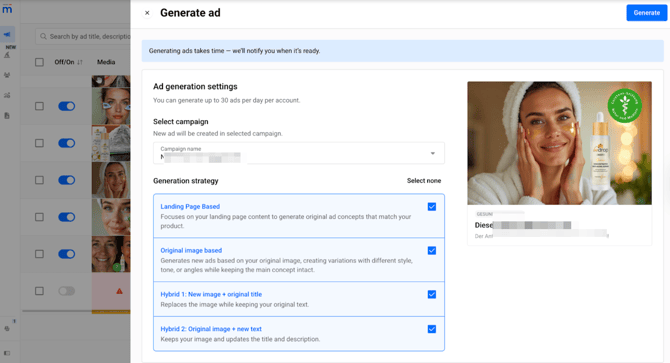
Find all manually generated creatives in the CTR Guard panel under the tab Manual generation.
/Advertisers/1.%20English%20language%20articles/CTR%20Guard/3.%20CTR_Guard_on_demand.png?width=670&height=332&name=3.%20CTR_Guard_on_demand.png)
Once generation starts, the original creative card shows a Generating ads indicator.
/Advertisers/1.%20English%20language%20articles/CTR%20Guard/4.%20CTR_Guard_on_demand.png?width=670&height=222&name=4.%20CTR_Guard_on_demand.png)
Motion Ad Generation
Turn your static creatives into captivating, high-quality motion ads instantly and effortlessly.
With just one click, Motion Ad generation transforms your existing visuals into dynamic, scroll-stopping videos designed to boost engagement.
To generate a motion ad, follow these simple steps:
- Go to the Ads section and click the three-dot menu next to the creative you want to animate.
- Select Generate Motion Ad.
/Advertisers/1.%20English%20language%20articles/CTR%20Guard/1.%20Motion_ads_generation.png?width=670&height=336&name=1.%20Motion_ads_generation.png)
3. Choose whether to generate the motion ad for your current campaign or a different one. That’s it, the system automatically produces a motion version of your creative.
/Advertisers/1.%20English%20language%20articles/CTR%20Guard/2.%20Motion_ads_generation.png?width=670&height=332&name=2.%20Motion_ads_generation.png)
There’s no need to redesign or reshoot anything; your original creative is simply reimagined as an animated video. It’s fully brand-safe and ready to grab attention in the feed.
Here’s how it works:
- Your first five motion ads are free.
- Additional generations unlock automatically based on your campaign’s total spend on motion creatives.
- You’ll see a progress message right on your dashboard showing how much more you need to spend to unlock the next batch of motion ads.
You can find all generated motion ads in your CTR Guard panel under the Motion Ads tab. Newly created motion ads are easy to spot; they’re marked with a blue dot.
/Advertisers/1.%20English%20language%20articles/CTR%20Guard/3.%20Motion_ads_generation.png?width=670&height=332&name=3.%20Motion_ads_generation.png)
Explore best practices for getting the most out of your motion ads.
Notification Center
After the creative generation completes (success or failure), you’ll get a Notification Center alert under the CTR Guard tab:
✅ Success: "New ad generation complete! Check out your new ad ID {12062535} for Campaign {name}. [link to ad]"
❌ Failure: " Couldn’t generate your ad. Ad in Campaign {name} wasn't generated due to [reason]."
Clicking the notification opens the newly generated creative in the CTR Guard panel.
Notifications are marked as "read" only after appearing within the visible screen area or after manually marking “Mark all as read.
/Advertisers/1.%20English%20language%20articles/CTR%20Guard/5.%20CTR_Guard_on_demand.png?width=302&height=369&name=5.%20CTR_Guard_on_demand.png)
Notifications for Motion Ads Generation
Once the generation of the motion ad is complete, you’ll receive a notification in your dashboard:
✅ Video generation complete – watch it now!
❌ Video generation failed – please try again later.
/Advertisers/1.%20English%20language%20articles/CTR%20Guard/4.%20Motion_ads_generation.png?width=261&height=367&name=4.%20Motion_ads_generation.png)
CTR Guard on Demand Generation Limits
The average time to generate new creatives is 10 minutes.
By default, the system allows 30 generations per day per client account. If the limit is reached, an error message appears:
"You've reached the daily limit for AI-generated creatives. To maintain system performance and moderation capacity, there's a cap on the number of creatives that can be generated per day. Please try again tomorrow or contact your account manager if you believe this limit should be increased."
Manual generation is always available (regardless of client status in the CTR Guard panel). New creatives may appear as (depending on review status):
- Approved
- On moderation
- Rejected